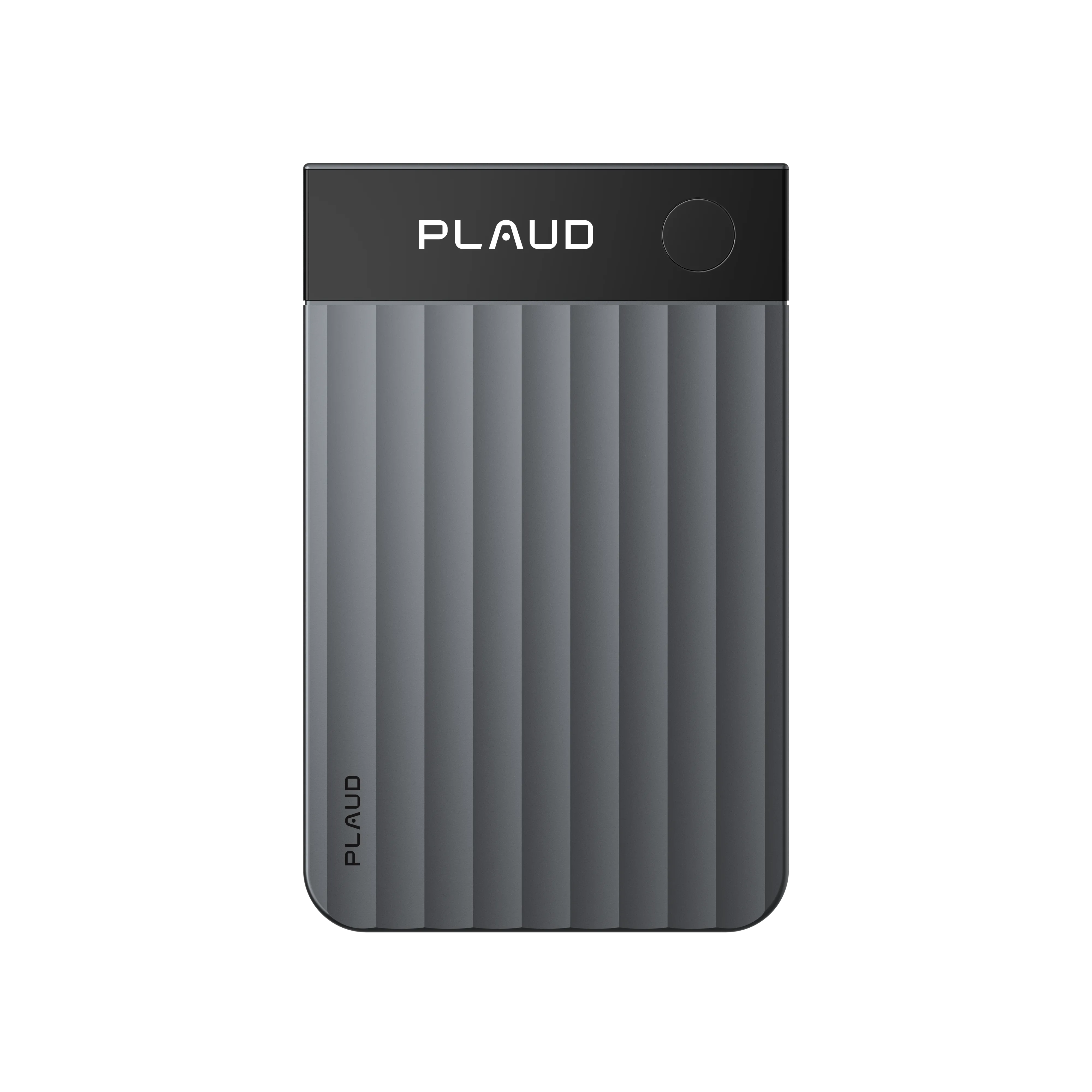


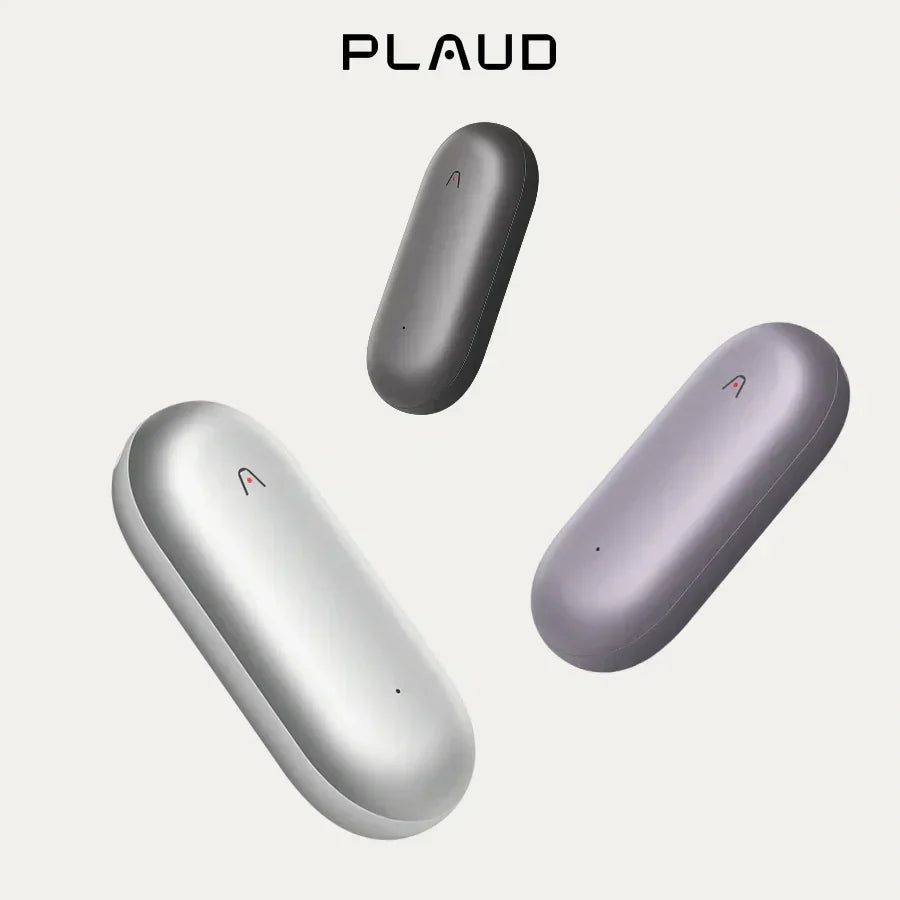
Transcribing audio into text used to be hard. You wasted time typing or used bad tools that made mistakes. I'm going to show you how to use a wearable AI note taker device, the Plaud NotePin, to turn any audio into clean text easily.
This guide shows you how to solve your transcription problem with a clear, three-step process.
How to transcribe audio to text: step-by-step guide
With Plaud NotePin, you can go from raw recording to clear notes in just three simple steps.
Step 1: Get your audio recorded
Your first step is capturing the sound. The Plaud NotePin is flexible, allowing you to record without disrupting your day.
- For live talk: Clip on the NotePin and push the record button. Whether you are speaking your book idea or recording a school lecture, the device will capture your words well.

- For old files: If you already have audio files, you can send them to the Plaud App for the AI to read.
Step 2: Transcribe audio to text
To get transcription, you can connect the Plaud NotePin to the Plaud App on your phone or tablet. Once a successful connection is established, your audio files will be saved.
Next, open the audio file within the App and tap the "Generate" button to start the transcription process. Here, you'll be prompted to select your preferred transcription language, AI model, and a summary template, if desired.

Once your selections are made, tap "Generate". The Plaud App will then convert your audio recording into text.
Tips:
- If many people are talking, the Plaud tries to find and separate the speakers. This is very helpful for interviews or meetings.
- Use the App to add tags (like "Chapter 3" or "Action Items") to the file. This simple step helps you organize big projects right away.
Your speech is now a clean document, ready for the final step.
Step 3: Fix and export your transcription
After the initial generation, you have the option to regenerate the transcription if you need to improve the accuracy. Additionally, the App allows you to generate summaries and mind maps, and you can export or share the final transcripts.
Tips:
- For very long recordings, use the summary feature. It quickly finds the main points or key tasks. Read the summary first so you don't have to read the whole long text.
- Look over the text in the App. You can change your words to fit a written style. Remember, we talk differently from the way we write.
For more details, learn how to use Plaud NotePin.
My tips on Plaud NotePin to transcribe audio to text
Plaud NotePin is suitable for post-event transcription and summarization, rather than live transcription.
It is not positioned as a real-time speech-to-text tool like Zoom, Teams, or live captioning systems. In contrast, real-time transcription tools are ideal for immediate on-screen display.
So it's best suited for scenarios including:
- Lectures and classes
- Long meetings, conferences, and interviews
- Situations where playback and structured insights are needed (e.g., meeting minutes, interview transcripts)
In short, you can decide whether to use Plaud NotePin based on your own needs and usage context.

My recommendation: Adopt a hybrid workflow
Using an AI recorder like the Plaud NotePin is about making the creation process easier, not eliminating human skill. I recommend the following workflow for maximum efficiency:
- Creation (Device): Use the Plaud NotePin for all your initial drafting and brainstorming. Speak everything out loud—don't stop to self-edit.
- Structure (App): Immediately use the in-app tools to tag the content, separate speakers, and use AI summaries to confirm the main points of each session.
- Refinement (Human): Export the structured text to your computer and use a human editor (either yourself or a professional) to refine the language and finalize the flow.
Conclusion
Plaud NotePin makes it simple to turn speech into text. It is best for recording and then transcribing with high accuracy, not live captions. Use it for lectures, meetings, and ideas you don’t want to lose.
FAQ
Can Plaud NotePin transcribe in real time?
No. Plaud NotePin works best for recording first and transcribing later. This ensures higher accuracy for lectures, meetings, and interviews.
Can I transcribe existing audio files?
Yes. You can upload your files to the Plaud App, and the AI will convert them into text. No need to record again.
Can Plaud NotePin tell different speakers apart?
Yes. It can try to identify and separate multiple speakers. This is useful for interviews or group meetings.
Can I edit or export the transcript?
Yes. You can review, edit, summarize, or create mind maps in the App. Then export or share the final text easily.