

Making a conference call on an iPhone is simpler than it sounds. With the built-in iPhone features, you can call one person, add another, and merge the calls into a group, no downloads or sign-ups needed.
Below are the exact steps to start a conference call and manage participants during the call.
How to make a conference call on iPhone using built-in features
Here's how it works: you call one person, add another person to the call, then merge everyone together. You can keep adding people one at a time, and once they're merged, everyone can hear each other.
Step 1: Open the Phone app

First things first—open up your Phone app. You know, that green icon with the white phone on it that you use for regular calls.
Once you're in, you've got three ways to start your first call:
- Recents: Tap this to see who you've called recently and quickly redial them.
- Contacts: Browse through your saved contacts and pick someone from there.
- Keypad: Type in a phone number manually if the person isn't saved in your contacts.
Pick whatever works for you. The main thing is just getting that first call going.
Step 2: Call the first person

Make your first call just like you normally would. Tap the person's name or hit the call button after entering their number.
Here's the important part: wait for them to actually answer before moving on. You can't start adding people until someone picks up! Once they answer, you'll see your regular call screen with all the usual buttons.
Step 3: Add another person to the call

Okay, this is where the conference call magic starts. See that "Add Call" button on your screen? It usually has a little "+" symbol. Tap it.
When you do this, your first call automatically goes on hold. Don't panic—this is totally normal! The first person will just hear hold music or silence for a bit while you call the next person.
Now you're back to the same screen you used for the first call. You can:
- Search your Contacts for the second person
- Check Recents if you've talked to them lately
- Use the Keypad to dial their number
Pick the second person and call them. Wait for them to answer, just like before.
Step 4: Merge calls
This is the fun part! Once that second person answers, look for the "Merge Calls" button and tap it.
Boom! Everyone's now connected in one big conversation. Now both callers can hear each other, and your screen will show Conference or the participant count.
Want to add more people? Just repeat the process! Tap "Add Call" again, dial someone new, wait for them to answer, then hit "Merge Calls" to bring them into the group. Most carriers let you have five or six people total on a conference call, though this depends on your plan.
Step 5: End the conference call
When you're done talking, just tap the red "End" button like you would on any call.
In most cases, ending the call disconnects everyone. Carrier behavior can vary, so if the call doesn’t end for all participants, it’s due to carrier settings.
Want to kick just one person off the call without ending it for everyone? Tap the little "i" button next to "Conference" at the top. You'll see everyone who's on the call. Just tap "End" next to whoever you want to remove, and they'll get disconnected while everyone else keeps talking.
Step 6: Save your call notes
So the call's over. Now what? If it was important, you've probably got action items to remember, deadlines to track, and commitments people made. But let's be honest—after a 20-minute group call, it all starts to blur together pretty fast.
Here's what you should do: set up a system to automatically capture your calls so you can stop scrambling to remember everything. Instead of trying to take notes while you're also trying to participate in the conversation, let technology handle the recording part for you.
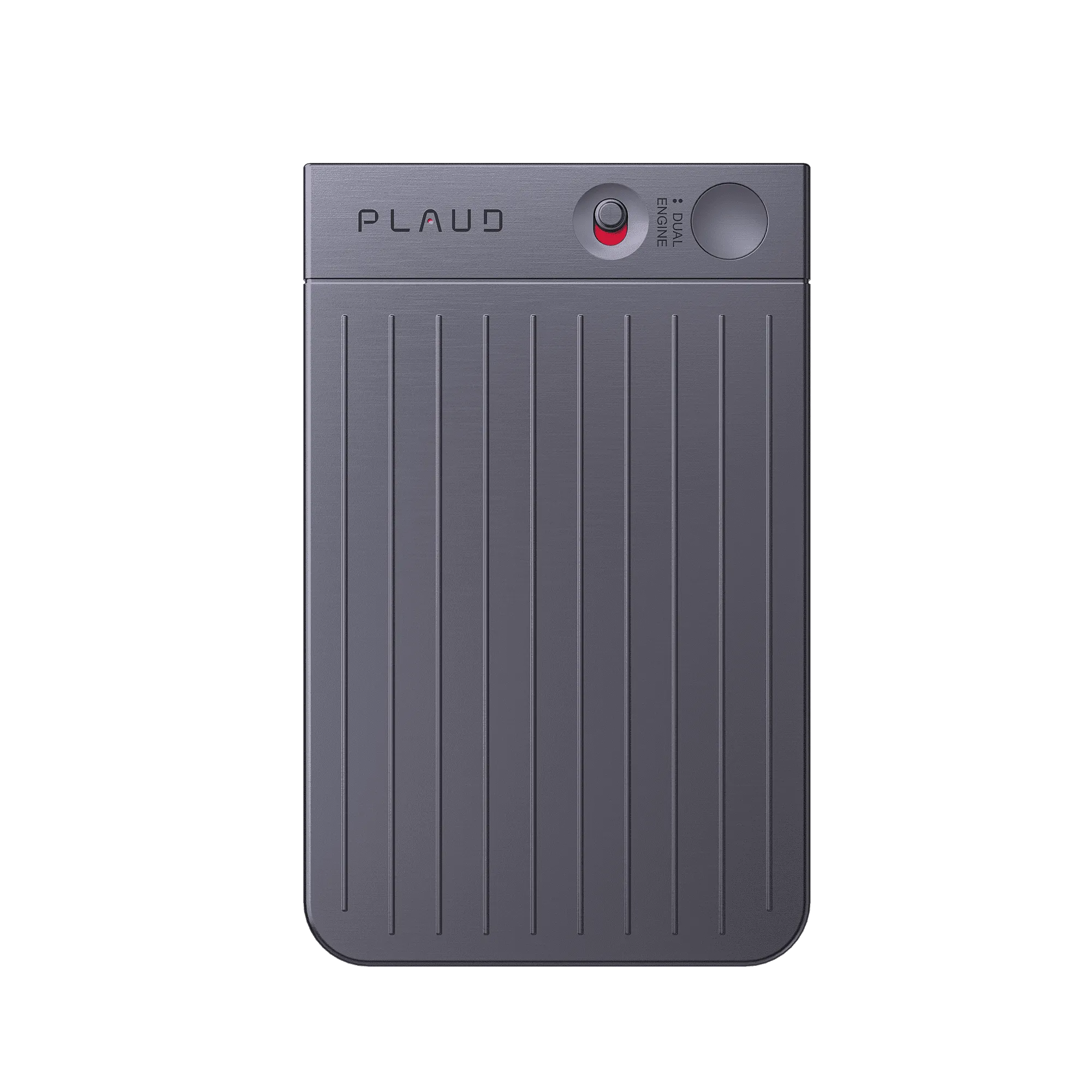
With a tool like Plaud Note Pro, here's how you can make your call follow-ups way easier:
- Long-press to start recording, then stay fully present in the conversation. Once it’s running, it keeps recording without any extra taps.
- Review who said what after the call by checking the speaker labels. This way, you'll know exactly which person committed to each task.

- Pull up the organized summary to see all your action items and key decisions in one place. No more digging through messy handwritten notes.

- Add your own context during the call by typing quick notes or snapping photos of whiteboards, documents, or anything else that's relevant.
- Search through your past calls whenever you need to find something specific. Forgot what was discussed two weeks ago? Just search for it.
After each call, take a few minutes to review the summary, check off what you need to do, and export the notes to share with your team or save in your project files.
If you're handling important calls regularly, start recording them now instead of relying on memory. You'll stop having those "Wait, what did they say about that deadline?" moments and actually have reliable records you can refer back to anytime.
Start a group call on your iPhone in a few taps
Once you’ve tried a group call on your iPhone, you’ll see how simple it really is. No extra apps, no accounts, no learning curve—just a few taps and everyone is on the line. Next time you need to plan something with family, friends, or coworkers, set up a quick conference call instead of texting back and forth. And if you often forget who said what, Plaud Note Pro can quietly record and turn your call into clear notes, so you can focus on the conversation, not on writing everything down.